

Moving your WooCommerce store to a new domain, new host, or a redesigned site is exciting but your product catalog doesn’t move on its own. If you’ve tried to manually recreate products on a new store, you already know how painful it is. Missing attributes, broken images, mismatched categories, lost variations one slip and your catalog is a mess. For stores with hundreds or thousands of products, doing it by hand simply isn’t an option.
The good news: you can migrate your entire WooCommerce product catalog including images, categories, attributes, tags, and variations using the WebToffee Product Import Export plugin. It’s a dedicated WooCommerce product export import plugin that handles the full process in just a few steps. Export your products from the old store as a CSV, then import that file into the new store. (The Pro version also supports XML, TSV, and Excel formats.) That’s the entire migration.
This guide walks you through both phases export and import using the free version of the plugin. Where the Pro version unlocks extra power, we’ll call it out clearly. No technical expertise required.
Why Use a Dedicated Plugin to Migrate WooCommerce Products?
WooCommerce’s built-in export tool is limited. It doesn’t handle images well, skips custom fields, and gives you no control over what gets exported. A purpose-built WooCommerce product export import plugin solves all of that.
➔ Preserve every product detail. Product name, SKU, price, stock, categories, tags, attributes, images, and descriptions all travel with the product — nothing is left behind.
➔ Handle any catalog size without timeouts. The plugin processes data in batches, so even a store with 10,000+ products migrates without server errors or memory failures.
➔ Avoid manual errors. A CSV export captures your data exactly as it is. No retyping, no copy-paste mistakes, no missing variations.
➔ Save hours of work. What would take days to do manually takes minutes with the right tool.
➔ Automate ongoing syncs with scheduled import and export. The Pro version supports cron-based scheduled import and export via FTP/SFTP, so if you’re running parallel stores during a transition period, data stays in sync automatically.
Part 1: Export WooCommerce Products from the Old Store
Install and run this process on your source store — the one you’re moving away from.
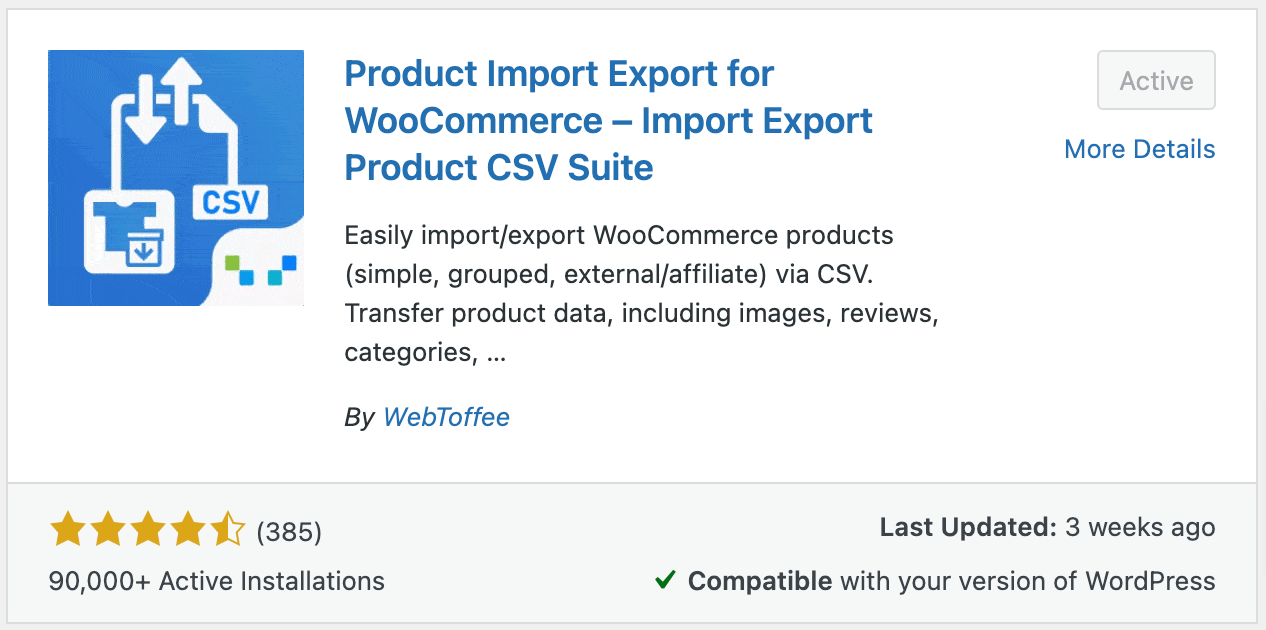
Step 1: Install the Product Import Export Plugin
You need the plugin active on both stores. Start with the old one.
- Go to Plugins > Add New Plugin from your WordPress dashboard.
- Search for “Product Import Export for WooCommerce” (by WebToffee).
- Click Install Now, then Activate.
Once activated, you’ll see a new WebToffee Import Export (Basic) menu in your WordPress sidebar.
Step 2: Select Product as Post Type
Here’s how to start the export:
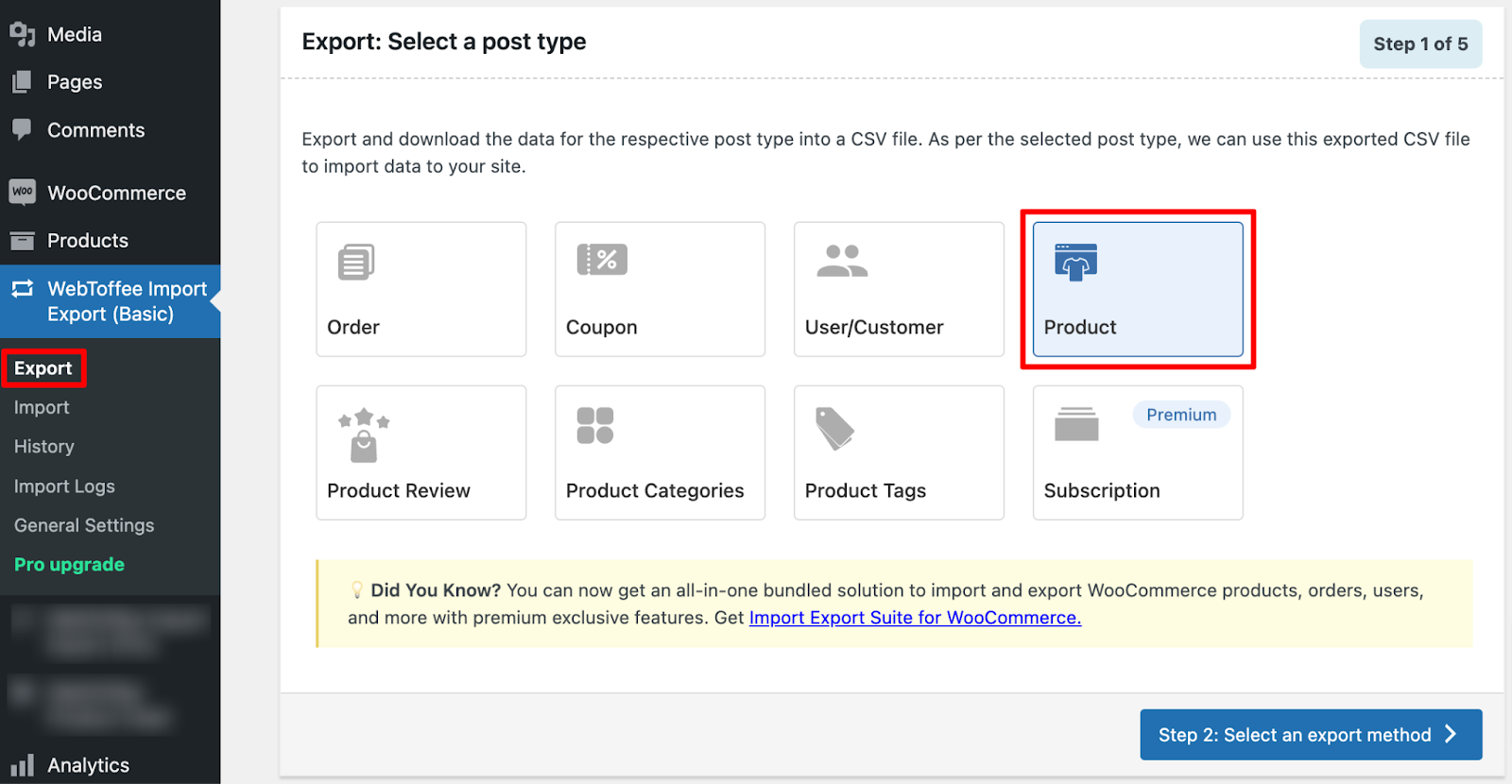
- Navigate to WebToffee Import Export (Basic) > Export.
- Under Post Type, select Product.
- Click Select an export method to move to the next step.
Step 3: Choose Your Export Method
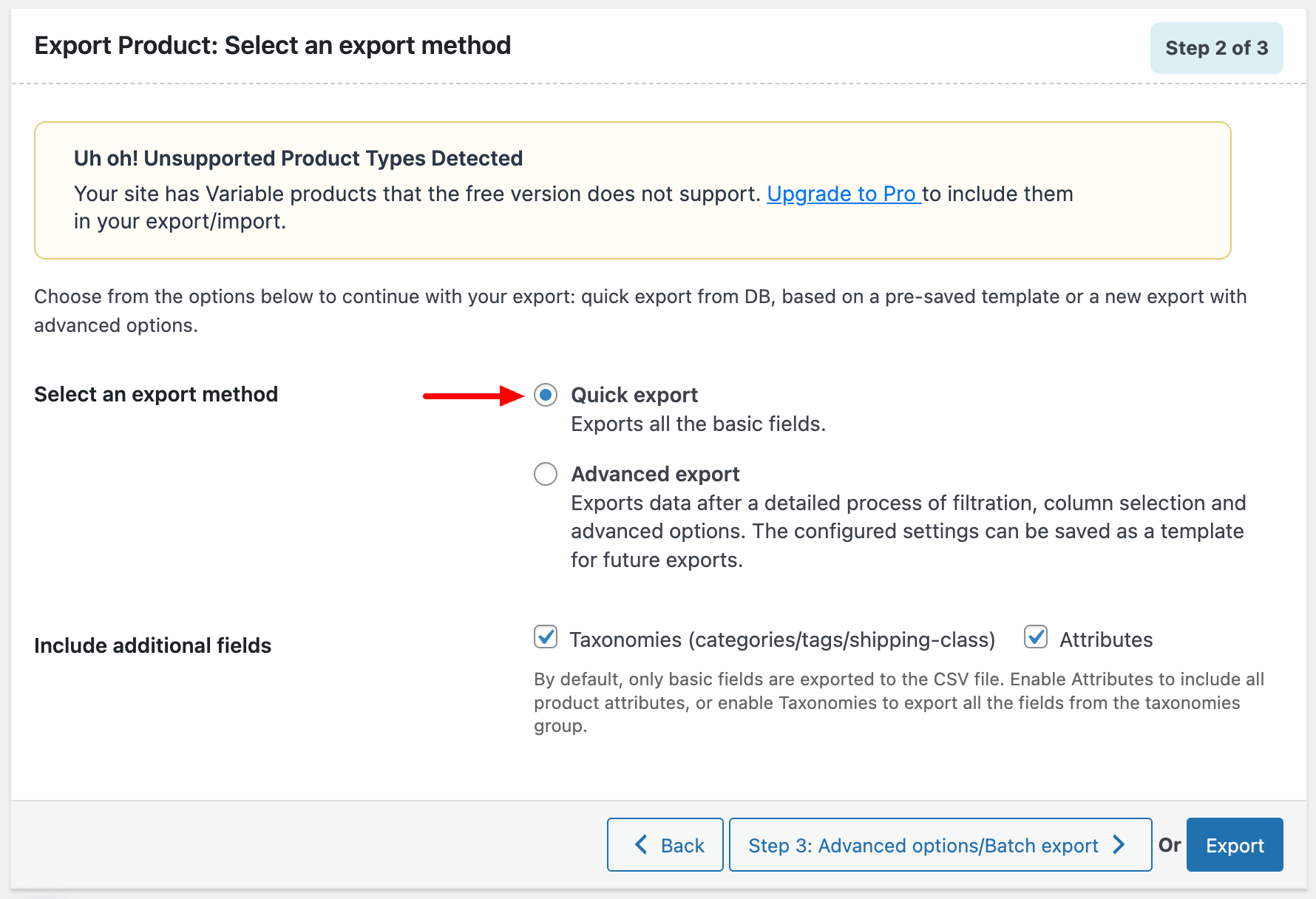
The plugin offers two export methods. Choose based on your needs:
- Quick Export — Exports all products with standard fields in one click. Use this for a complete, no-fuss catalog export. Best for most migrations.
- Advanced Export — Lets you filter by product type, category, stock status, or specific products. Use this if you only want to migrate a subset of your catalog.
For a full store migration, Quick Export is usually the right call.
Step 4: Filter Your Data (Advanced Export Only)
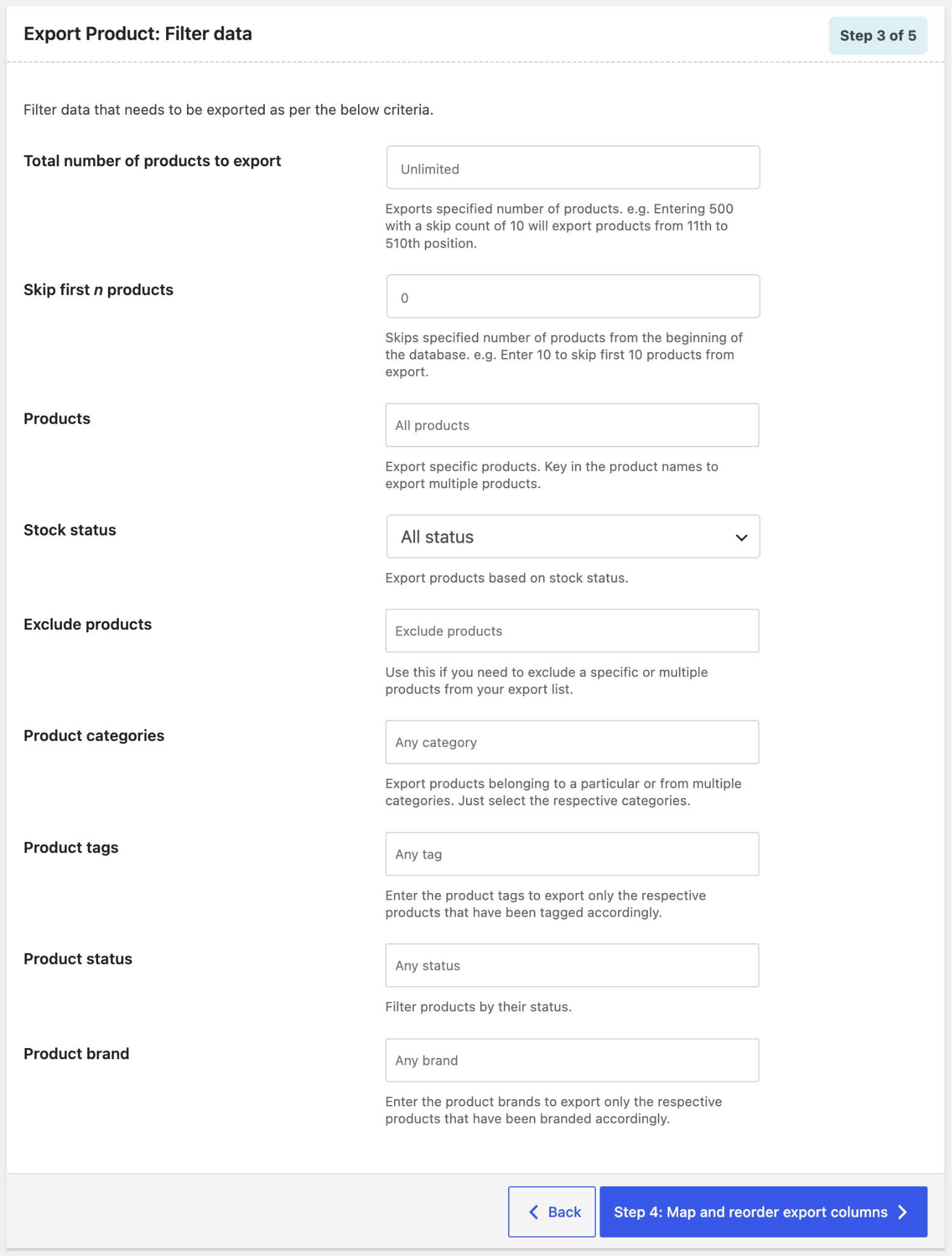
If you chose Advanced Export, Step 3 lets you apply filters before exporting:
- Total number of products — Leave blank to export everything, or enter a number to limit the export.
- Stock status — Filter by in stock, out of stock, or on backorder.
- Product categories — Export only products from specific categories.
- Product tags — Filter by tag.
- Product status — Published, draft, or other statuses.
- Skip first n products — Useful for exporting in batches if your catalog is very large.
Adjust as needed, then click Step 4: Map and reorder export columns to continue.
Step 5: Map and Reorder Export Columns
This step controls which fields appear in your exported file and in what order.
- All standard product fields are included by default — name, SKU, price, stock, categories, images, attributes, etc.
- Remove any columns you don’t need.
- Rename column headers if your new store uses different field names.
- Drag and drop to reorder columns.
For a straightforward migration, the default column mapping works fine. Click Step 5: Advanced Options/Batch Export to proceed.
Step 6: Configure Advanced Options and Export
The final step before your file is generated:
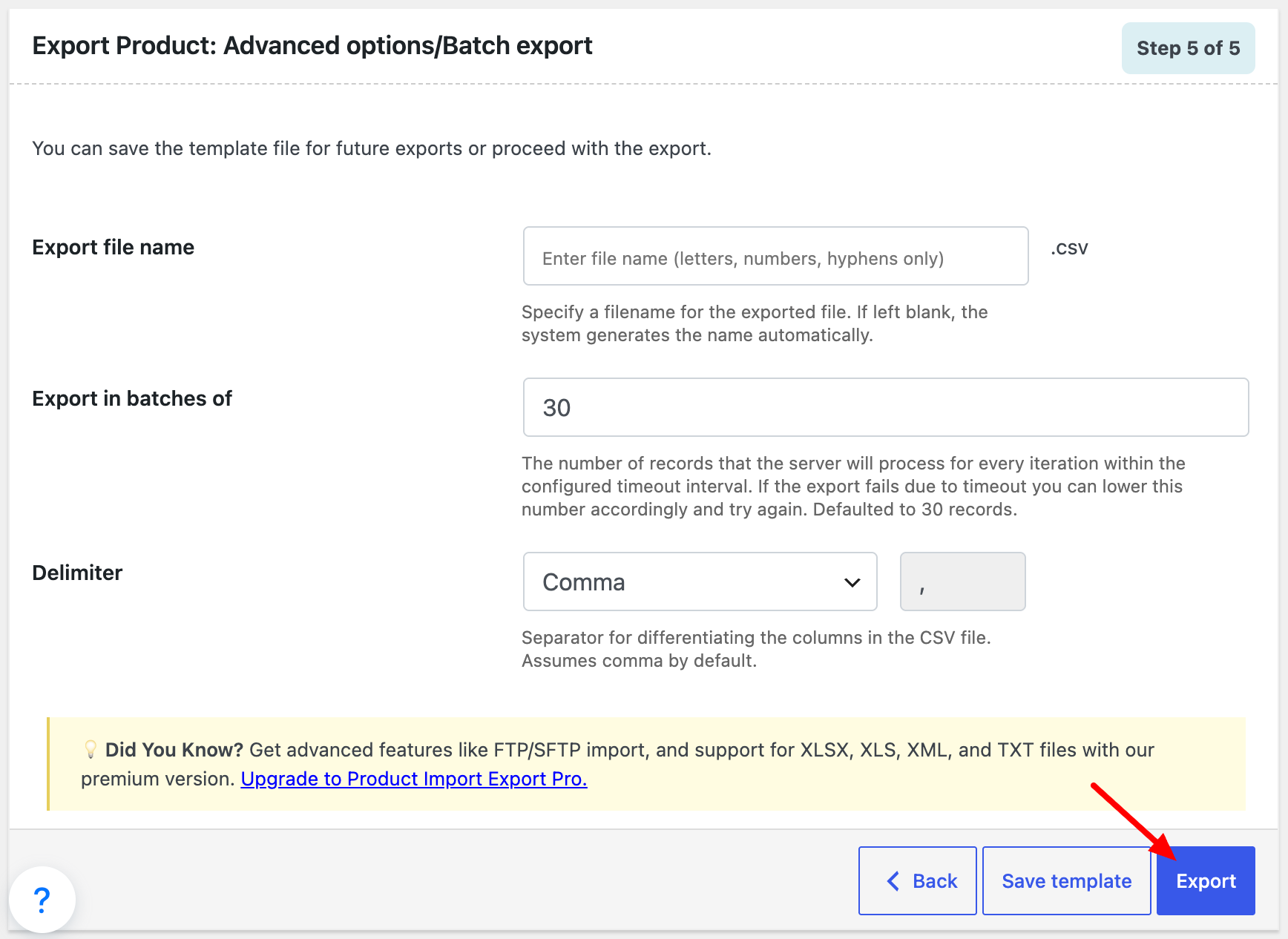
- Batch size — Controls how many products are processed per server request. Lower this number (e.g., 20–30) if your server times out.
- Export by — Choose to export using the internal product ID or SKU.
Once everything looks good, click Export. Your browser will download a CSV file containing your full product catalog.
Part 2: Import WooCommerce Products into the New Store
Now switch to your destination store — the one you’re moving to. Install the same plugin there and follow the steps below.
Step 1: Install the Plugin on the New Store
Repeat the installation from Part 1:
- Go to Plugins > Add New Plugin.
- Search for “Product Import Export for WooCommerce” (by WebToffee).
- Install and activate.
Step 2: Select Product as Post Type for Import
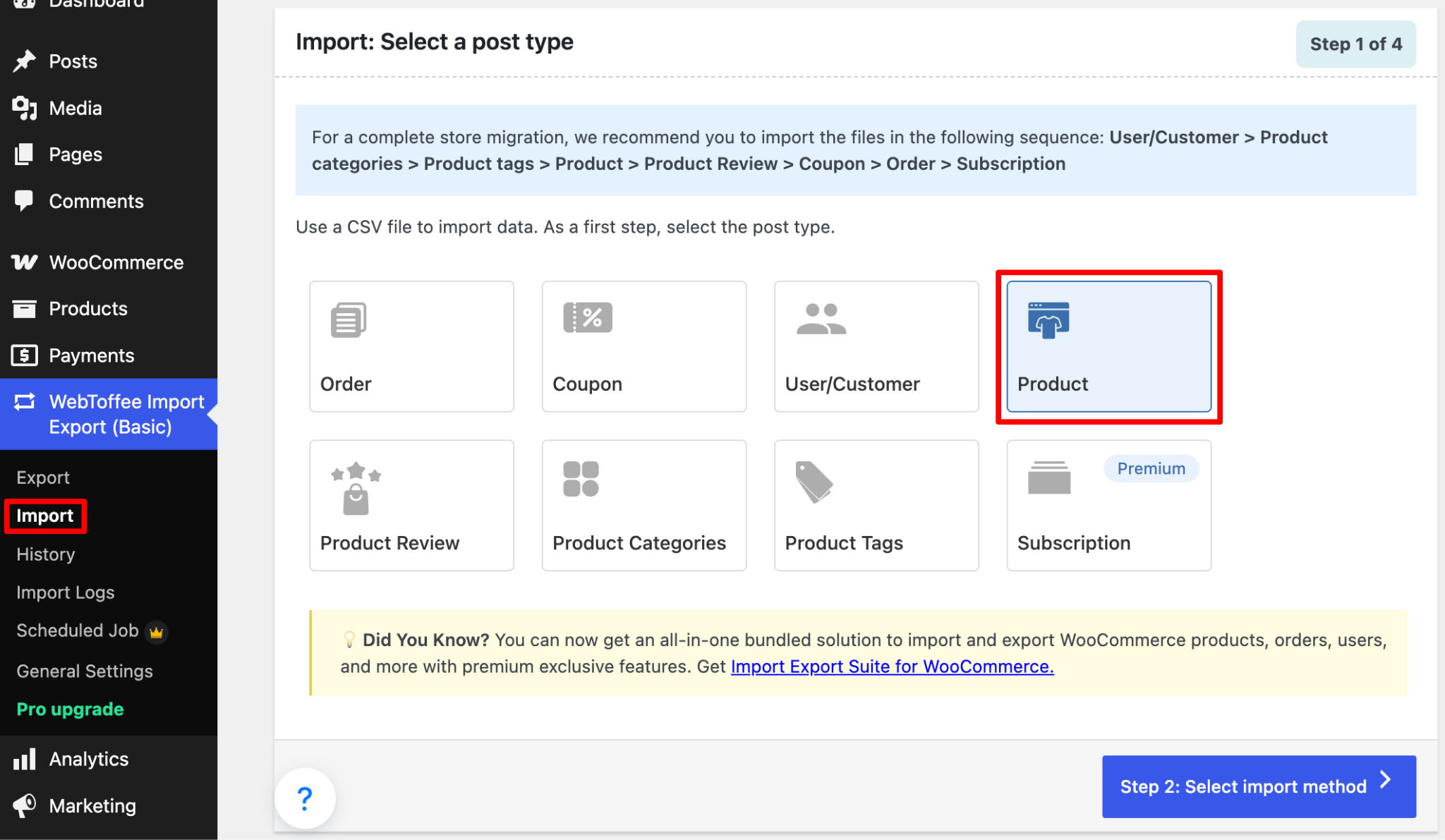
- Navigate to WebToffee Import Export (Basic) > Import.
- Under Post Type, select Product.
- Click Select an import method.
Step 3: Choose Your Import Method and Upload the File
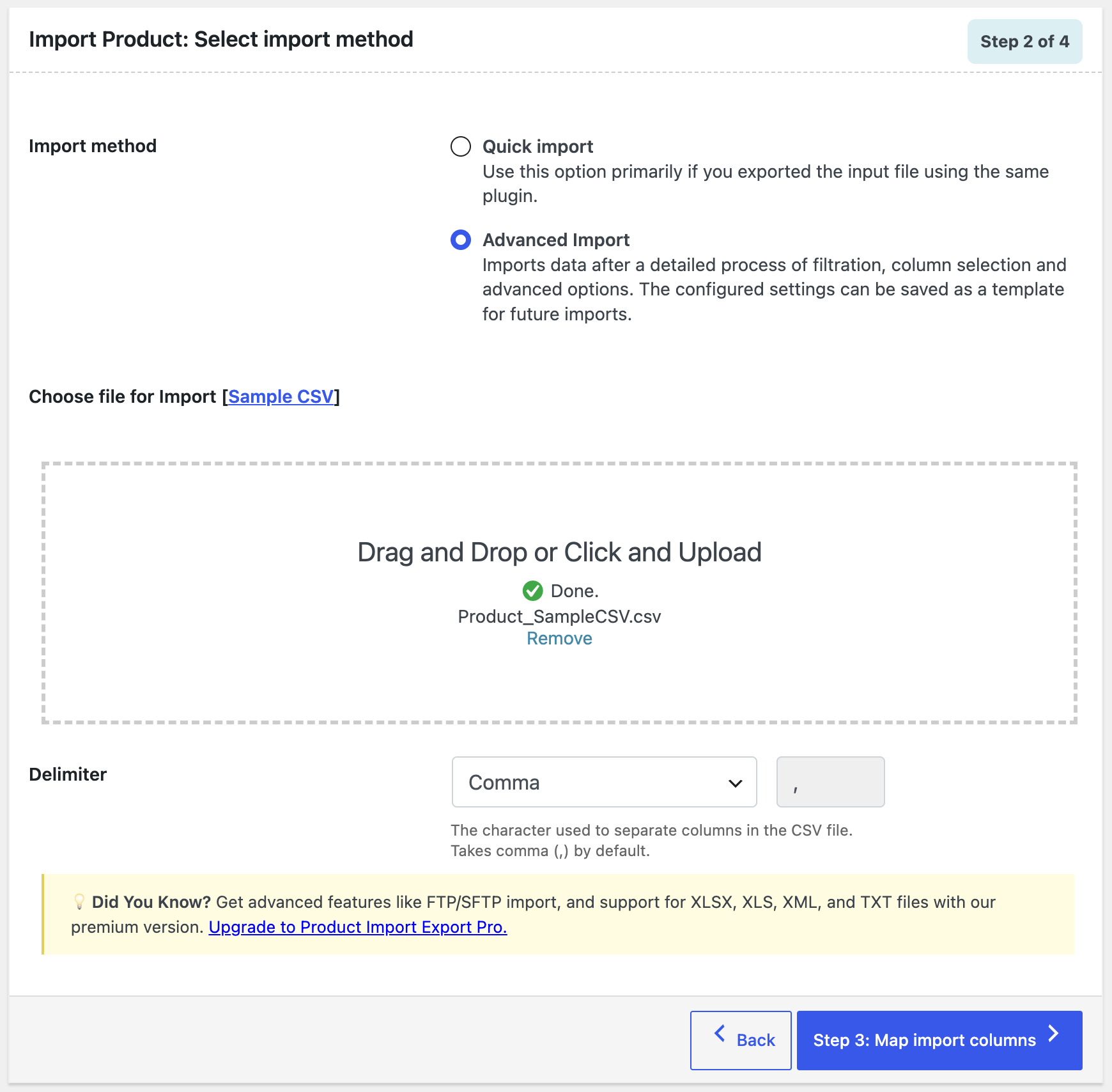
- Quick Import — Use when the file was exported with the same plugin. The plugin auto-maps all columns. Fastest option for this migration.
- Advanced Import — Use when you need to manually map columns or apply transformations to the data.
Under Import from, select Local file and upload the CSV file you exported from the old store. Then click Step 3: Map import columns.
Step 4: Map Import Columns
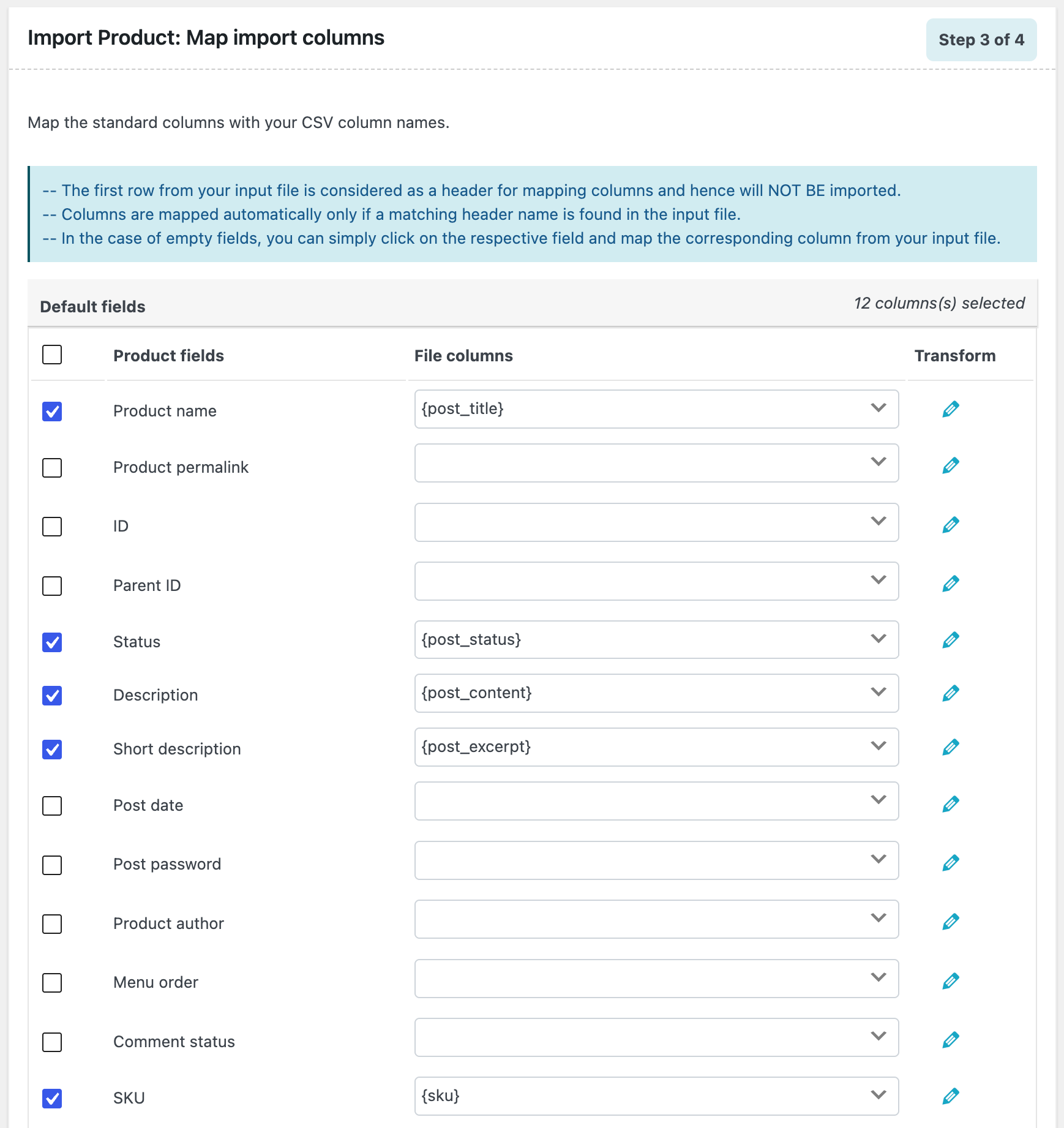
The plugin will auto-map your CSV columns to WooCommerce product fields. Review the mapping:
- Confirm each CSV column is matched to the correct WooCommerce field.
- Skip any columns you don’t want to import.
- Save the mapping as a template if you plan to run this import regularly.
Click Step 4: Advanced Options/Batch Import when the mapping looks correct.
Step 5: Configure Advanced Import Options and Run the Import
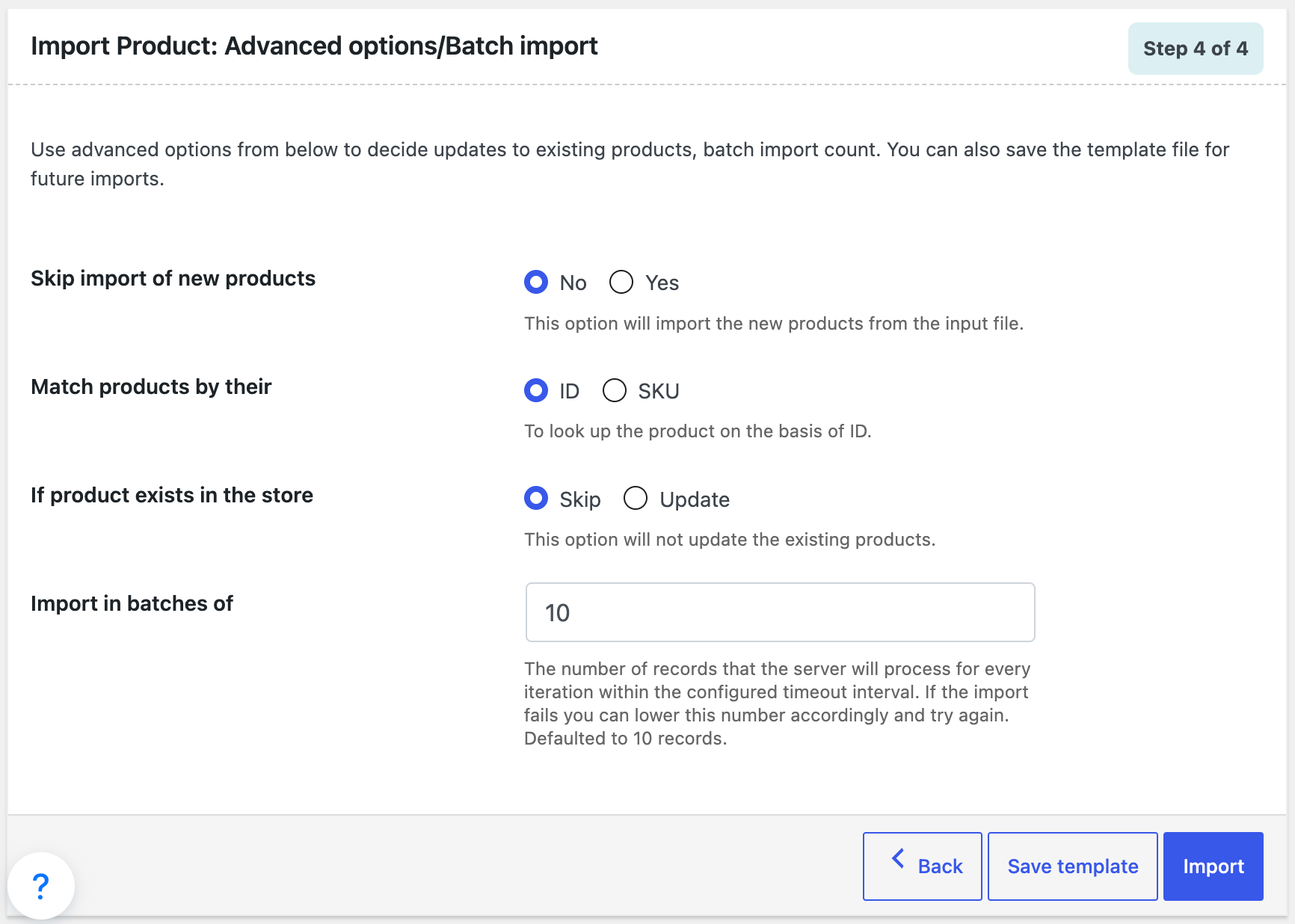
This is the most important step — it controls how the plugin handles your data:
- If product exists in the store — Choose Skip (to leave existing products untouched) or Update (to overwrite with incoming data). For a fresh store, this doesn’t matter. For an existing store, choose carefully.
- Match products by their — ID or SKU. Use SKU for cleaner matching across stores where product IDs may differ.
- Skip import of new products — Set to No to import all products from the file.
- If conflict with an existing Post ID — Select Import as new item for a new store.
- Batch size — Reduce if the import times out (try 20–30 records per batch).
Once everything is configured, click Import/Schedule and select Import.
The plugin will process your products in batches and display a progress bar. When it’s done, you’ll see a summary of imported, updated, and skipped records.
Bonus: Set Up Scheduled Import and Export for Ongoing Syncs
If you’re running two stores simultaneously during a transition, or if your source store updates regularly, manual exports and imports are inefficient. The Pro version of the plugin supports scheduled import and export using WordPress cron or server cron.
Here’s how it works:
- At Step 4 of either the import or export flow, click Import/Schedule and choose Schedule instead of importing immediately.
- Select a schedule type — WordPress Cron for basic scheduling, or Server Cron for more reliable, time-sensitive automation.
- Set the frequency: hourly, daily, weekly, or a custom interval.
- Connect an FTP/SFTP profile to pull export files from or push import files to a remote location automatically.
This makes the scheduled import and export feature ideal for stores that sync inventory between a wholesale system and their WooCommerce storefront, or stores that migrate in stages over days rather than all at once.
[Screenshot: Schedule import screen showing schedule type options (WordPress Cron / Server Cron), frequency selector, and FTP profile connection fields]
The plugin will process your products in batches and display a progress bar. When it’s done, you’ll see a summary of imported, updated, and skipped records.
Wrapping Up
Migrating WooCommerce products doesn’t have to be complicated. With the Product Import Export Plugin for WooCommerce by WebToffee, the process comes down to two actions: export from the old store, import into the new one. The basic product import export handles simple, grouped, and external products with full support for images, categories, attributes, and fields. That’s enough for most migrations.
If your store is larger or more complex, variable products, subscription products, FTP-based file transfers, or recurring scheduled import and export automations, the Pro version handles all of that without adding friction to your workflow.
Products are just one piece of a full store migration. If you also need to move your customer accounts, order history, or coupons, WebToffee has purpose-built tools for each:
Also Need to Migrate Orders, Users, or Coupons?
WordPress User Import Export Plugin — Move all your WordPress users and WooCommerce customers from one store to another. Supports CSV, XML, TSV, and Excel. Preserves roles, metadata, and passwords.
WooCommerce Order Import Export Plugin — Migrate WooCommerce orders, coupons, and subscriptions in bulk. Supports advanced filtering, custom order meta, and scheduled exports. Ideal for keeping your order history intact after a store move.
WooCommerce Import Export Suite Plugin — The all-in-one option. Migrate products, orders, coupons, subscriptions, and users/customers from a single plugin. If you’re doing a full store migration and want everything under one roof, this is the most efficient choice.
Recent Comments